Tables
Tables are useful in the production of drawings to display data.
Introducing Tables in Rhinoceros
Rhinoceros 5 is not capable of generating a table (as of 24/10/2014). The following set of tools have been created to allow users to create, and manage tables in Rhinoceros 5.
Through the production of drawings, tables are useful to display quantity take off and other data related to the drawing.
Table can also be used to display the drawing register which is managed by an Excel spreadsheet.
Requirements
- armacode
- Microsoft Excel 2013
- Microsoft Office Primary Interop Assemblies. (PIA)
- IronPython 2.7
Design & Concept
- Table is designed and created using Line, Text and Hatch objects.
- Each Cell value is represented by a Text Object.
- Row border is represented by a Rectangle
- Row fill is represented by a Hatch. Alternating rows are on different layers for Banded Rows formatting.
- Table geometries are stored in a Block Definition.
- Table name has a prefix “_TABLE_”
- Table properties, including the data values itself, are stored in Block Description
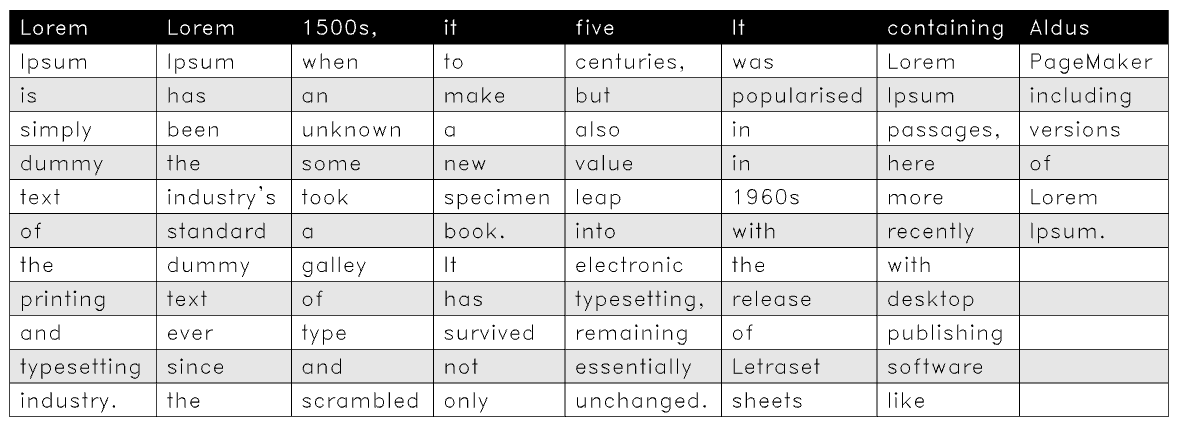
This is an example of the generated table
Features
- Link data with Excel supported files. (.xlsx, .csv, .txt)
- Data Range support.
- Autofit table width to data values
- Managable Font Style and Font Size through Dimstyles.
- Single line support
- Header Row
- Banded Rows
- Controllable colors using generated Layers.
- Splittable Long table (Equally by number of rows.)
Commands
The following operations are available after Table command is executed:
Create
Follow the prompts and set up Table properties.
Data source -> Data Range -> DimStyle -> Table Name.
User will be prompted to specify the insertion position of the newly created tables.
OpenLink
Opens the external data link file using the default application.
Relink
Relink the existing table to a new data source and data range.
SetDimStyle
Modify the Table Dimstyle
Update
Update table data with the linked data source. This also update any modified properties in the Block Description.
TableAddAllSheets
Batch Create tables from multiple sheet Excel file. Each table will have default name same as Sheet Title Each table will use the Entire Sheet as data source. Each table will use the Current DimStyle for formatting.
TableUpdateAll
Batch perform Update to all tables. User is prompted to select specific tables to update, if not preselected.
Note
Modification to Table properties stored in the Block Description should only be done by advanced users.